Apple ASO: the 2026 playbook for app developers and publishers

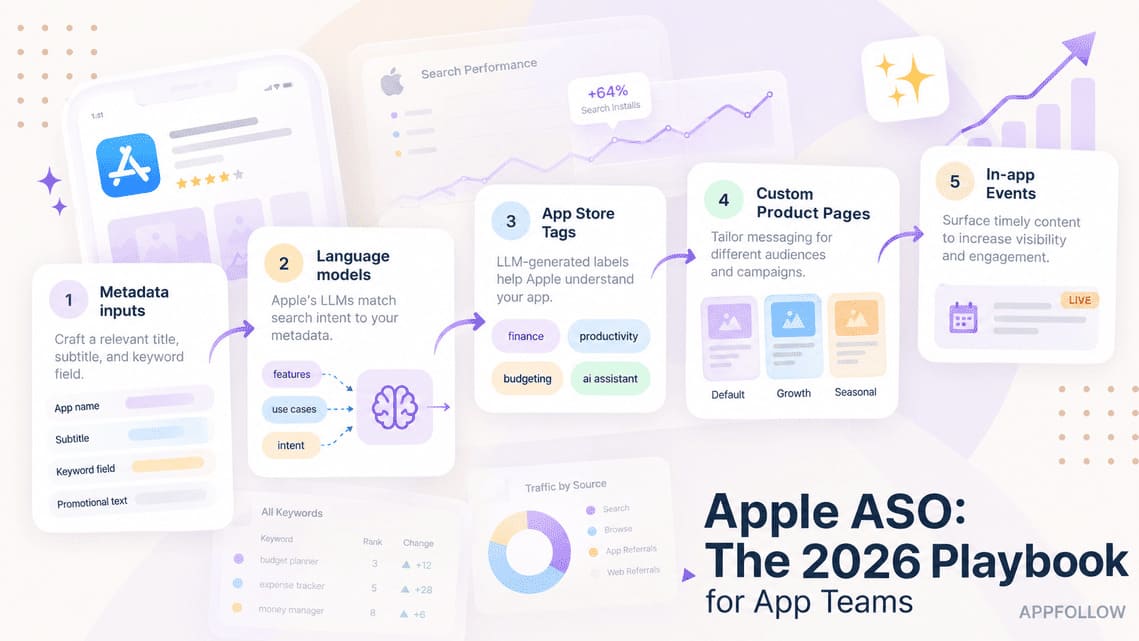
Table of Content:
- Key insights
- What the App Store actually indexes (and what it quietly ignores)
- How to build an Apple keyword strategy for any app
- Custom product pages vs. product page optimization
- What changed for ASO from iOS 15 to 2026
- In-app events, ratings and category discovery surfaces
- How to run this Apple ASO workflow with AppFollow
- Apple ASO FAQ
Apple ASO is the work of improving an app’s visibility and conversion on the App Store. Apple names the app name, subtitle, keyword field, and primary category as text-relevance inputs, alongside user behavior such as downloads, ratings, and reviews.
For app developers, publishers, and growth teams, that means allocating keywords across the fields Apple uses for search. The description helps explain the app and inform App Store Tags; promotional text carries current messaging. Neither is a place to pack organic keywords.
This guide covers keyword allocation, custom product pages (CPPs), product page optimization (PPO), and measurement in App Store Connect and AppFollow. Platform rules come from Apple documentation; AppFollow workflows are checked against its support documentation. Recommendations and worked examples show how to apply those rules. If you run the same mobile app on Android, Google Play ASO keywords follow different rules.
Start with the constraints that affect your next metadata release.
Key insights
- Apple search weighs four metadata surfaces. App name (30 characters), subtitle (30), keyword field (100), and categories contribute text relevance, alongside downloads and the quantity and quality of ratings and reviews.
- Only 160 characters belong to your core text-relevance fields. Apple doesn't list the description or promotional text as search-ranking inputs. Google Play does index its long description.
- Custom Product Pages can capture organic searches. Apple allows up to 70 CPPs, with approved keywords assigned to individual pages so the relevant CPP can appear instead of the default page.
- App store product page optimization is tightly constrained. PPO allows 3 treatments, one test at a time, for up to 90 days. Shipping a new version during the test terminates it.
- In-app events add discovery surfaces. They can appear in search, on product pages, and across personalized or editorial placements. Treat them as additional paths to discovery, not universal ranking signals.
- Your own console shows only part of the picture. App Store Connect tracks downloads, product page views, and conversion. AppFollow adds keyword history and competitor/category visibility; Compare Discovery benchmarks up to 5 apps.
The field reference below separates search relevance, conversion copy, and additional discovery surfaces.
cta_get_started_purple
What the App Store actually indexes (and what it quietly ignores)
Apple gives the name and subtitle 30 characters each, plus a 100-character keyword field. Use these fields for relevant search terms, and use the rest of the listing to explain why someone should download.
The four fields Apple indexes, and the two it does not
Apple describes ranking this way: “Search results include developers, in-app purchases, categories, editorial stories, tips and tricks, and collections. Apps appear in search results with their app name, subtitle, categories, keywords, and in-app purchases.” Its search documentation then points to metadata relevance and user behavior as major factors.
Use this reference when allocating metadata:
Field | Limit | Indexed for search | What it actually does |
App name | 30 characters | Yes | Visible name and search-relevance input; Apple does not publish field weights |
Subtitle | 30 characters | Yes | Visible keyword surface |
Keyword field | 100 characters | Yes | Invisible ranking input |
Primary category | 1 primary; optional secondary | Yes | Primary category is a named search-relevance input; secondary category supports browsing; Games supports subcategories |
In-app purchase display name | 30 characters | Yes, for non-consumables | Separate purchase discovery; eligibility and promotion requirements apply |
Promotional text | 170 characters | No | Current messaging; Apple says it doesn't affect search ranking |
Description | — | No for keywords | Conversion copy and an input for App Store Tags |
Screenshots / previews / icon | 10 / up to 3 / — | No | Conversion-focused creative |
This is where Google Play habits get expensive. Keyword-loading the description won't buy you Apple rankings. Put that effort into the name, subtitle, keyword field, and category selection instead. The description still earns its place, just not for keywords: understand what your App Store description is really for.
How Apple ranks: relevance plus what users do next
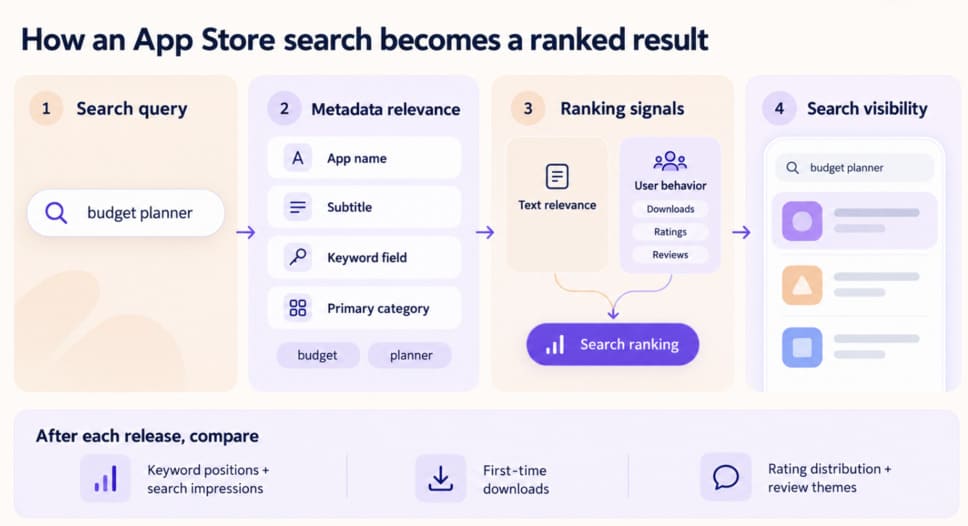
Metadata establishes relevance to a search. User behavior also contributes to ranking. Apple explicitly names downloads and the number and quality of ratings and reviews alongside text relevance as search-ranking considerations.
After a release, compare search visibility with downloads and ratings over the same period. A rise in all three is useful context, but it does not isolate the effect of metadata: acquisition campaigns, featuring, and product changes may also contribute.
Ratings also have an Apple-specific wrinkle: the summary rating is territory-specific, and you can reset it when releasing a new version. Apple cautions against doing this casually because the written reviews remain visible. For the broader picture, see the ASO ranking factors that apply across stores.
How App Store Tags use your submitted metadata
Apple App Store optimization gained another discovery layer with App Store Tags, introduced alongside iOS 26. Apple's large language models generate these labels from submitted metadata, including your description and screenshots, before human review. Developers can deselect unwanted tags.
Tags currently appear for US customers alongside categories on search pages and with apps in search results. That gives the description another discovery role: clear category, feature, and use-case language can influence the tags Apple generates, even though description keywords don't directly rank your app.
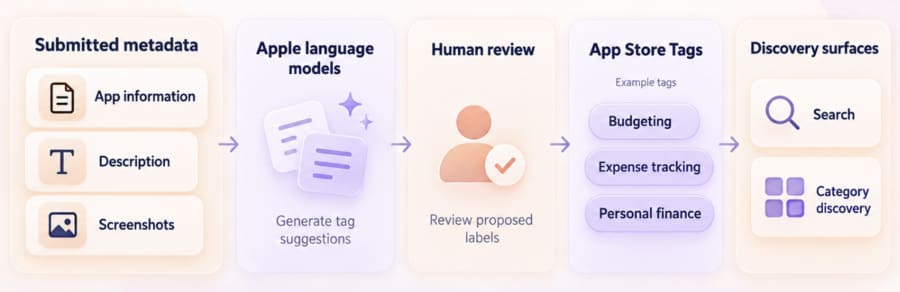
Choose terms that describe the app’s category, features, and audience before assigning them to individual fields.
How to build an Apple keyword strategy for any app
Start with the searches your app can satisfy. The name and subtitle provide 60 visible characters; the keyword field adds 100. Select terms by relevance, demand, and competition, then allocate them without repeating words across fields.
Where app search demand actually comes from
Build a candidate keyword list from category, use case, features, and outcomes. Start with category and use case: budget planner, workout tracker, photo editor, language learning. Then look at features and outcomes such as scan receipts, train at home, or speak Spanish. These often capture users who know what they want but don't know the category language.
Brand and competitor terms expose another demand pool, with two catches. Apple advises against including category names in the keyword field. Reserve that space for relevant feature and use-case terms. And treat competitor names carefully: Apple's App Review Guideline 2.3.7 prohibits stuffing metadata with trademarked terms and popular app names.
Before you write a single field, you need the terms competitors already own, especially where they hold a top-five position, and you don't rank.
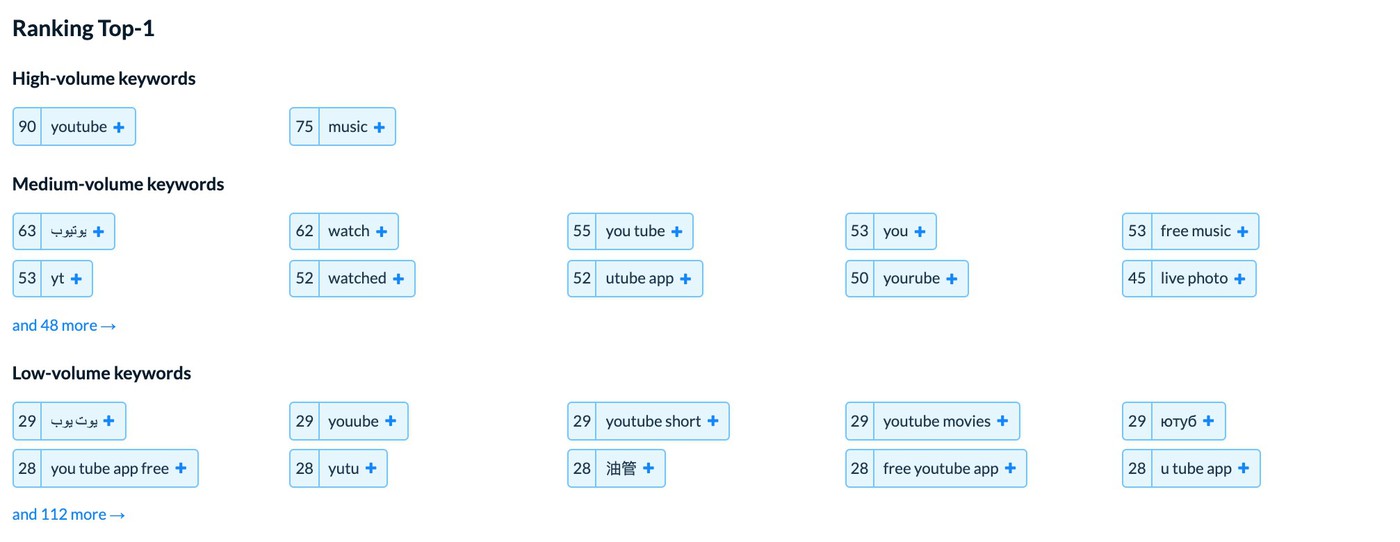
A competitor sitting at #2 on a term that's too difficult isn't worth 12 of your 100 characters this release. The same opportunity at #40 may be. Popularity below 20 is generally not worth tracking. Use AppFollow's competitor keyword tracking to spot those gaps.
cta_get_started_yellow
How to use Apple’s 100-character keyword field
The keyword field allows 100 characters, including commas and spaces. Separate keywords with commas and no spaces. Keep spaces only inside multi-word phrases. Apple combines terms across fields, so skip duplicates, plurals of existing singulars, app, category names, and your own brand. Apple covers these mechanics in its choosing keywords guidance.
Eligible promoted in-app purchases and subscriptions can also appear in App Store search. Use accurate display names for the content customers can buy; do not treat purchase names as a substitute for the app’s keyword field.
This worked example uses a fictional budgeting app to show how removing repeated words frees keyword space:
Field | Example | Characters used |
App name | Pennywise: Budget Planner | 25 / 30 |
Subtitle | Expense & Money Tracker | 23 / 30 |
Wasteful field | budget,planner,expense,money,tracker,savings,bills | 50 / 100 |
Better field | savings,bills,debt payoff,spending,goals | 40 / 100 |
“The first thing I remove from an Apple keyword field is anything the app is already getting credit for elsewhere: duplicate title terms, category language, sometimes even broad keywords with no realistic ranking path. That space goes to specific features and outcomes. I’d rather track ten relevant terms we can move than twenty impressive ones we can’t.”
— Yaroslav Rudnitskiy, ASO expert at AppFollow
Prioritize the remaining terms by relevance and demand. See our app store optimization title guide for title construction; across a portfolio, watch for ASO keyword cannibalization. Once the fields are written, the only honest test is what the store returns.
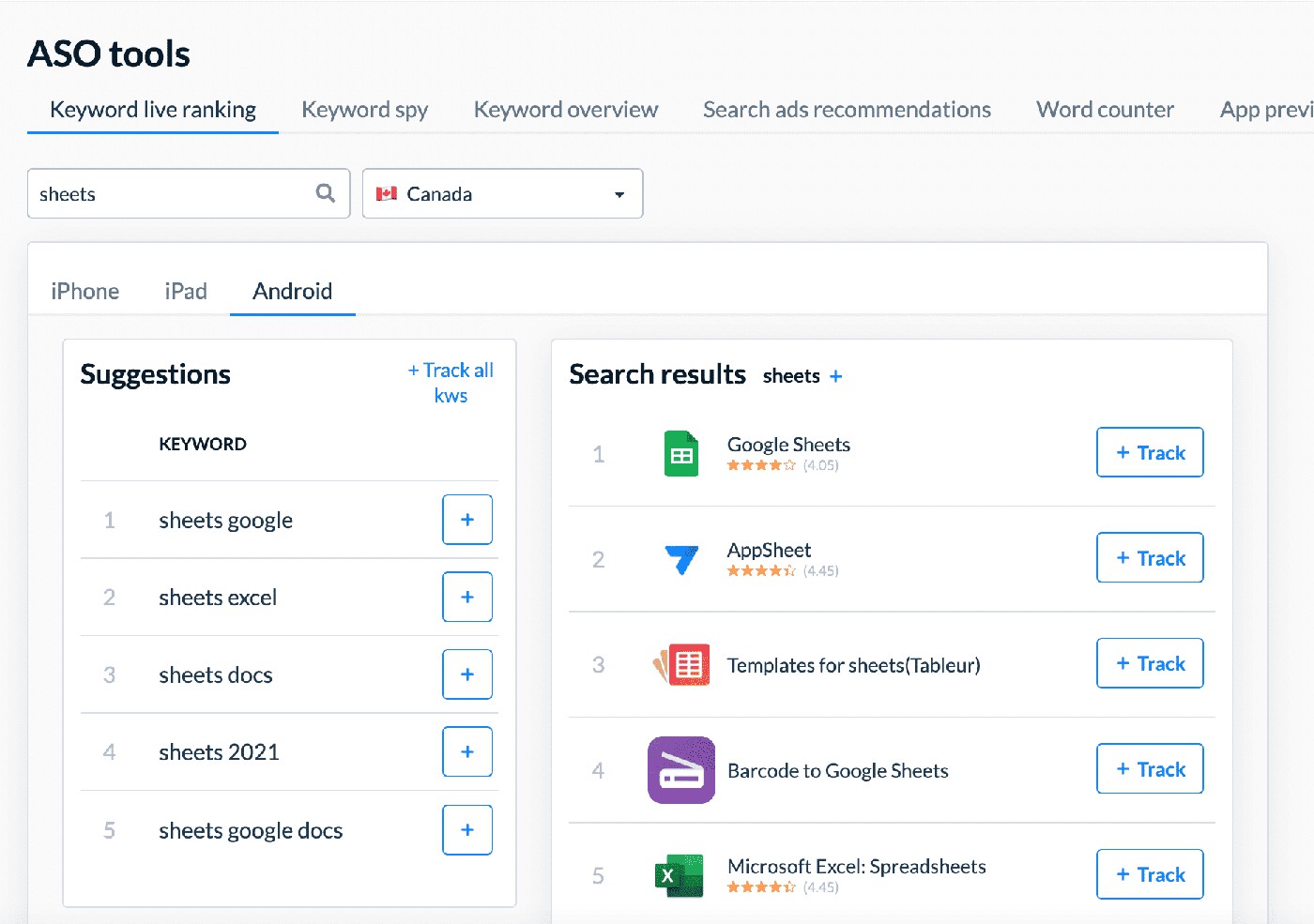
Check whether the app appears for the query, then inspect the apps above it. Appearance confirms visibility for that query at that time; it does not prove which metadata field supplied the match. If results mainly serve a specific brand, a generic app may be a poor fit for the intent.
Double your indexed keywords with the English U.K. rule
One of the cheapest wins in iOS app store optimization sits inside localization. Each storefront indexes its default language plus certain additional supported languages. English (U.K.) happens to be supported across many markets, including Germany, France, Japan, Brazil, Mexico, and Australia.
That gives you another keyword field to work with. Instead of copying your English (U.S.) terms into English (U.K.), fill those 100 characters with a different keyword set. In storefronts that index both localizations, you've effectively expanded your searchable keyword pool without translating another listing.
Check which languages each storefront indexes in AppFollow's App Store countries and localizations table before building the fields. The combinations vary by market.
There is one catch. App Store Tags don't get the same expansion. Apple currently generates them from en-US metadata and displays them only in the US. This tactic increases keyword indexation, not tag coverage.
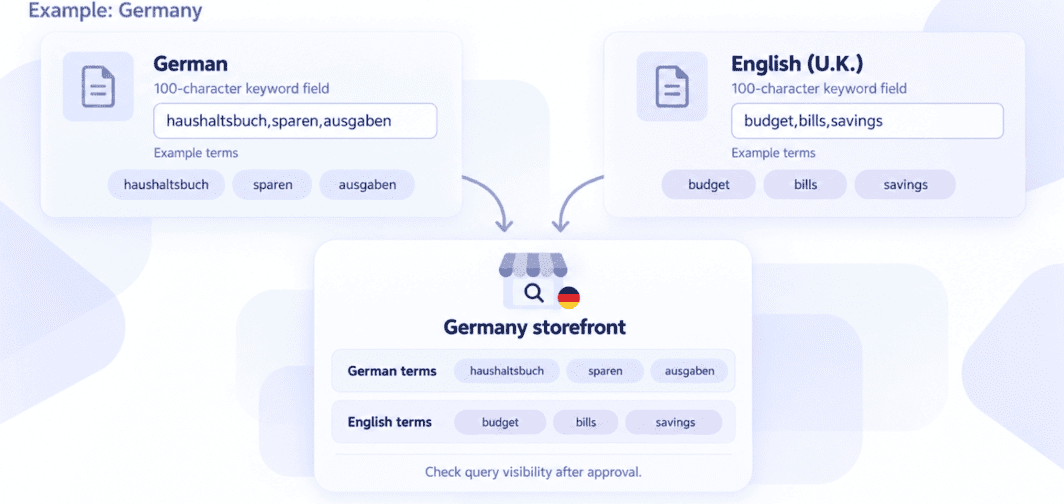
In storefronts that index both localizations, the English (U.K.) field can expand the searchable keyword pool instead of duplicating English (U.S.) terms.
What to track after you ship the metadata
- Before submission, save the keyword set, positions, storefront, device, and date as a baseline.
- After release, compare ranks, App Store search impressions, and first-time downloads over comparable periods.
- Check paid campaigns, featuring, seasonality, and product changes before attributing movement to metadata.
Once the new version is live, track three things: Did targeted ranks move? Did impressions follow? Did installs follow? Don't judge the rewrite the next morning. Keyword changes require a version submission, and rankings need time to settle.
Keyword Tracking shows the visibility part of that check. Keep the country, device, and date filters consistent; use App Store Connect alongside it to assess acquisition and conversion.
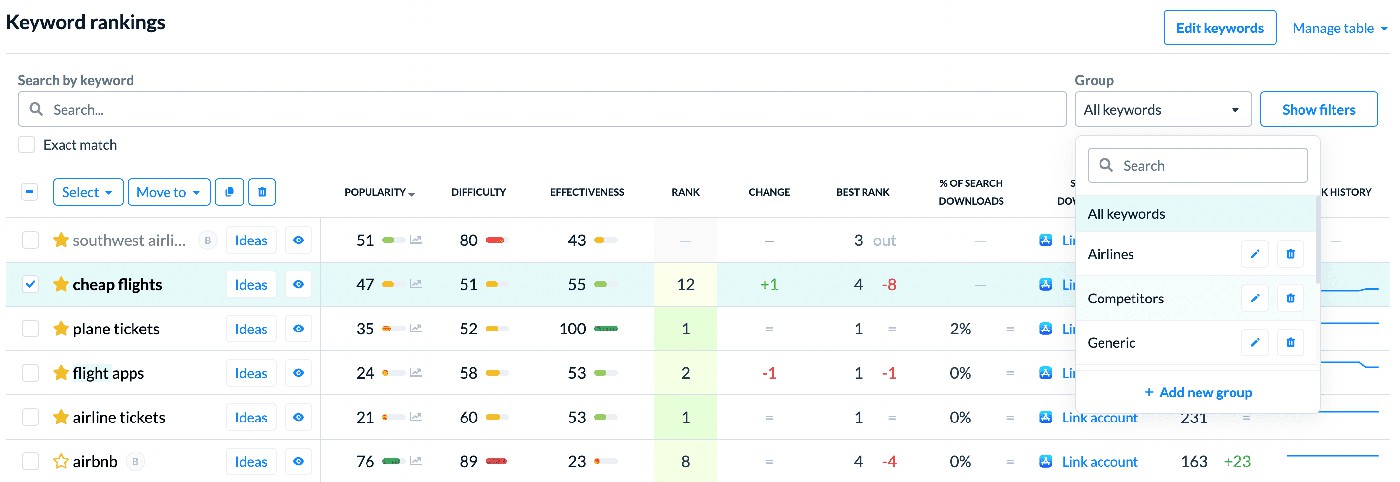
Read change against the release date, not yesterday. A move from #38 to #19 is evidence to keep the term. No movement across two releases? Reallocate those characters. Effectiveness above 20 is a signal to consider moving the term into the name or subtitle. Difficulty and Effectiveness are real-time metrics, so export values you want to compare later.
Use AppFollow's App Store keyword tracking to keep that history visible.
cta_get_started_purple
Once the keyword set is ready, match the product page to the search intent and test the creative that users see.
Custom product pages vs. product page optimization
Use custom product pages (CPPs) to match a listing to a particular audience or search intent. Use product page optimization (PPO) to compare creative through a randomized test against the default page. CPP performance comparisons can inform decisions, but they are not the same as a PPO experiment.
Custom product pages: 70 addressable landing pages per app
You can create up to 70 custom product pages for one app, each built around a specific audience or intent. Apple lets you vary screenshots, app previews, promotional text, and keywords, localize the page, then share it through a unique URL. On iOS 18 and later, deep links can also take users from a CPP into relevant content inside the app.
CPPs also support organic discovery. Assign keywords from your latest approved version to a CPP, and Apple can show that page instead of the default listing for those searches.
Think in intent clusters. A finance app might separate budgeting, credit score, and investing. Fitness could split strength, running, and nutrition. Travel might build around flights, hotels, and itinerary planning. Match each page's keywords to its first-screen creative rather than producing 20 cosmetic variations of the same pitch.
Product page optimization: what you can test and what the numbers mean
PPO lets you test up to three treatments against your original product page, changing the icon, screenshots, or app previews. Only one test can run at a time, for up to 90 days, and treatments require App Review approval. Alternate icons must already exist in the shipped binary.
You control traffic allocation. Send 40% to a test with two treatments, for example, and each gets 20%; the original keeps 60%. Results appear in App Analytics once at least five first-time downloads are associated with the test. Apple calls a result better or worse than baseline at 90% confidence or higher.
Apple uses Bayesian analysis to report confidence. Read the estimated lift and interval alongside the result label; five downloads are a reporting threshold, not a sufficient sample for a decision. Before applying a treatment, check whether the result is precise enough and the improvement matters for your app.
Choose the included localizations before starting. A treatment relevant to one market may not suit another, while a narrowly targeted test may take longer to collect enough traffic. Use ASO screenshots best practices to define a clear creative hypothesis, or test app preview videos when motion is central to the experience.
Plan PPO around releases and available traffic
Apple’s current PPO overview warns that releasing a version can affect results when it changes assets or metadata being tested. A developer also reported an automatic stop after an update in Apple’s forums. Treat that report as an operational warning, rather than a rule that every release always terminates a test.
Before launch, record the hypothesis, treatment, included localizations, traffic allocation, success criterion, and planned release dates. Agree which changes can wait until the test ends and who will check its status after a release. Apple says a stopped test cannot be restarted; recreating it starts a new test.
Use Apple’s estimated test duration to assess whether the selected traffic can produce a useful result within 90 days. Frequent releases require a plan for preserving the tested experience. A CPP can remain available across versions for a specific audience, but it does not replace a randomized creative test.
IMAGE
Caption: Plan releases around a PPO test: changes to the tested experience can affect interpretation, and a stopped test must be recreated. CPPs serve a separate audience-routing role.
Alt text: Timelines showing a PPO test with a release checkpoint and a custom product page remaining available across app versions.
Question | Custom product page | Product page optimization |
Purpose | Match page to audience/search term | Test which creative converts |
Permanent? | Yes | No, 90 days max |
Release considerations | Page remains available across versions | Review changes to tested assets or metadata; stopped tests must be recreated |
Keyword-addressable? | Yes | No |
What varies | Screenshots, previews, promo text, keywords | Icon, screenshots, previews |
How many | Up to 70 | 3 treatments, 1 test |
Best use | Audience/use-case pages | Creative testing between releases |
Update Timeline shows public listing changes. A creative change followed by a reversion is worth inspecting, but it does not reveal whether a competitor ran a PPO test or which treatment won.
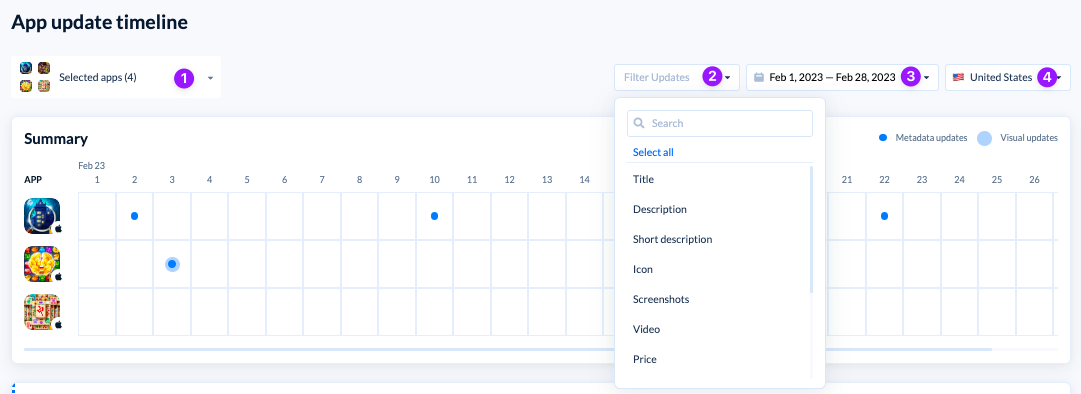
Update Timeline: competitor metadata and creative changes, dated.
If several competitors adopt a similar first screenshot, review whether your treatment still communicates a distinct benefit. Use public changes to inform a hypothesis; they do not establish what converts for your app.
CPPs and PPO both launched in 2021. Their original purpose remains useful, but current limits and discovery features differ from launch-era guidance.
What changed for ASO from iOS 15 to 2026
The iOS 15 period introduced in-app events, CPPs, and PPO. Those systems remain part of the workflow in 2026, alongside newer options such as keyword-linked CPPs, deep links, and App Store Tags.
What changed in iOS 15 for ASO?
Three systems arrived during the iOS 15 period: in-app events for discovery, PPO for creative testing, and CPPs for audience-specific product pages.
Apple launched in-app events on October 27, 2021. PPO and CPPs followed on December 8, 2021, adding native creative testing and audience-specific product pages. Apple’s launch announcements document the rollout.
These features arrived after App Tracking Transparency enforcement began with iOS 14.5. They gave app teams additional ways to improve store discovery and conversion. CPP and PPO experiences are shown to users on iOS 15 or later.
What has changed since: iOS 15 to iOS 26
Use the timeline to distinguish the original tools from later discovery and creative options.
Release | Year | What it changed for ASO |
iOS 15 | 2021 | In-app events, CPPs, PPO |
iOS 16–17 | 2022–23 | No verified change to indexed metadata fields |
iOS 18 | 2024 | CPP deep links into specific in-app content |
iOS 26 | 2025 | LLM-generated App Store Tags; Apple Games app; in-app events extended to Games |
2026 documentation | 2026 | Asset Library and creative-asset management documented in App Store Connect; confirm available placements and event badges before implementation |
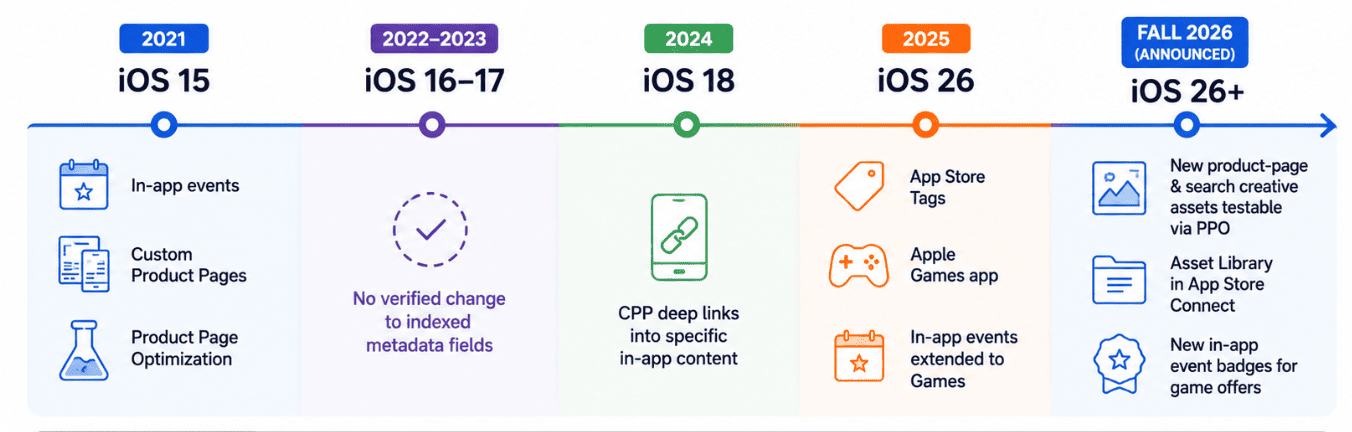
The pattern is useful: Apple hasn't changed the core indexed text fields since 2021. New pages, placements, and discovery mechanics have accumulated around them. That 100-character keyword field you optimized five years ago? Still 100 characters.
Is an iOS 15 ASO guide still useful in 2026?
Partly. An old iOS 15 ASO guide can still get the fundamentals right: field limits, keyword-field mechanics, in-app events, CPPs, and PPO haven't disappeared.
What it won't give you is the current operating environment. Older guidance can miss the 70-page CPP limit, keyword-addressable CPPs, iOS 18 deep links, App Store Tags, and newer category-specific discovery surfaces.
I use a quick freshness check when reading older iOS 15 app store optimization advice:
- Does it mention App Store Tags?
- Does it give the current 70 custom product page limit?
Two noes tell you the article predates 2025. Keep the mechanics that still hold; verify everything built around them.
The indexed fields are stable, but the discovery surfaces around them keep expanding. The next section shows how to use those surfaces across categories.
In-app events, ratings and category discovery surfaces
The default product page isn't Apple's only organic discovery surface. Every app can use in-app events, compete for featuring, and move through category rankings; some categories add dedicated surfaces. For ASO Apple Store optimization, connect each event or release to an audience action, then read rankings and ratings on the same timeline.
When to use in-app events for discovery
Apple allows 10 published in-app events at once and 15 approved in App Store Connect. Events can run for 31 days and appear up to 14 days before they start. You get 30 characters for the name, 50 for the short description, and 120 for the long description, plus seven badge types. Select a badge from the current options in App Store Connect.
The use case changes by app: tax-season features for finance, limited sales for retail, 30-day fitness challenges, seasonal travel planning. Events can surface on product pages, in search, and in editorial or personalized selections.
One boundary matters: Apple doesn't state that event metadata affects keyword ranking. Use events to create more discovery and conversion opportunities, not as a backdoor keyword field.
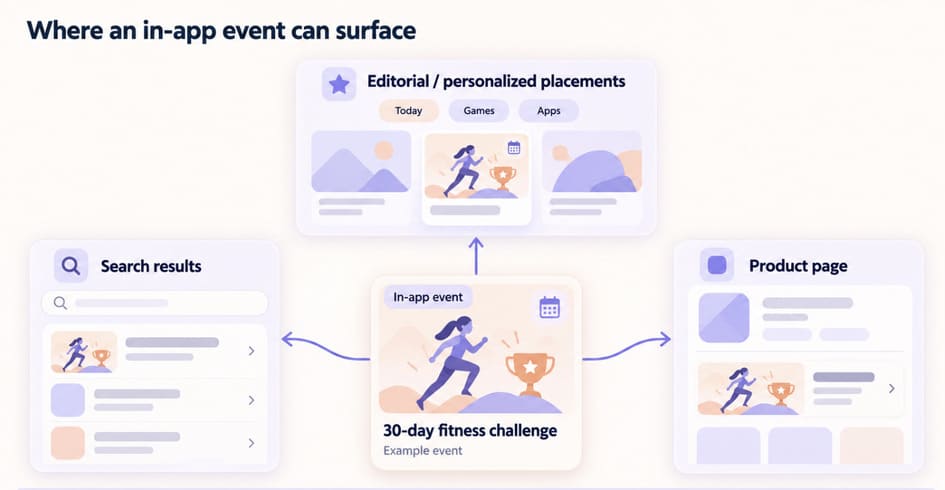
In-app events create additional discovery and conversion surfaces; Apple does not describe event metadata as a separate keyword-ranking input.
Category-specific example: the Apple Games app
Games illustrate how technical integration can open additional discovery surfaces. Supporting Game Center initialization lets a game appear in social recommendations and the Top Played chart in the Games app and App Store. Coordinate the integration with the development team and check which features suit the game’s player experience.
For a game with a social loop, Game Center initialization becomes a discovery requirement. The transferable lesson for other publishers is simpler: audit the App Store surfaces specific to your category and product features. Include those category-specific entry points in your discovery plan.
Ratings are an ASO input, and every release can move them
Apple includes the number and quality of ratings and reviews among the user-behavior signals affecting search. The visible summary rating can influence conversion too.
Track rating distribution, new reviews by version and territory, reply coverage, and changes around each release. AppFollow's Rating Analysis: Stars and reviews timeline give you that operating view.
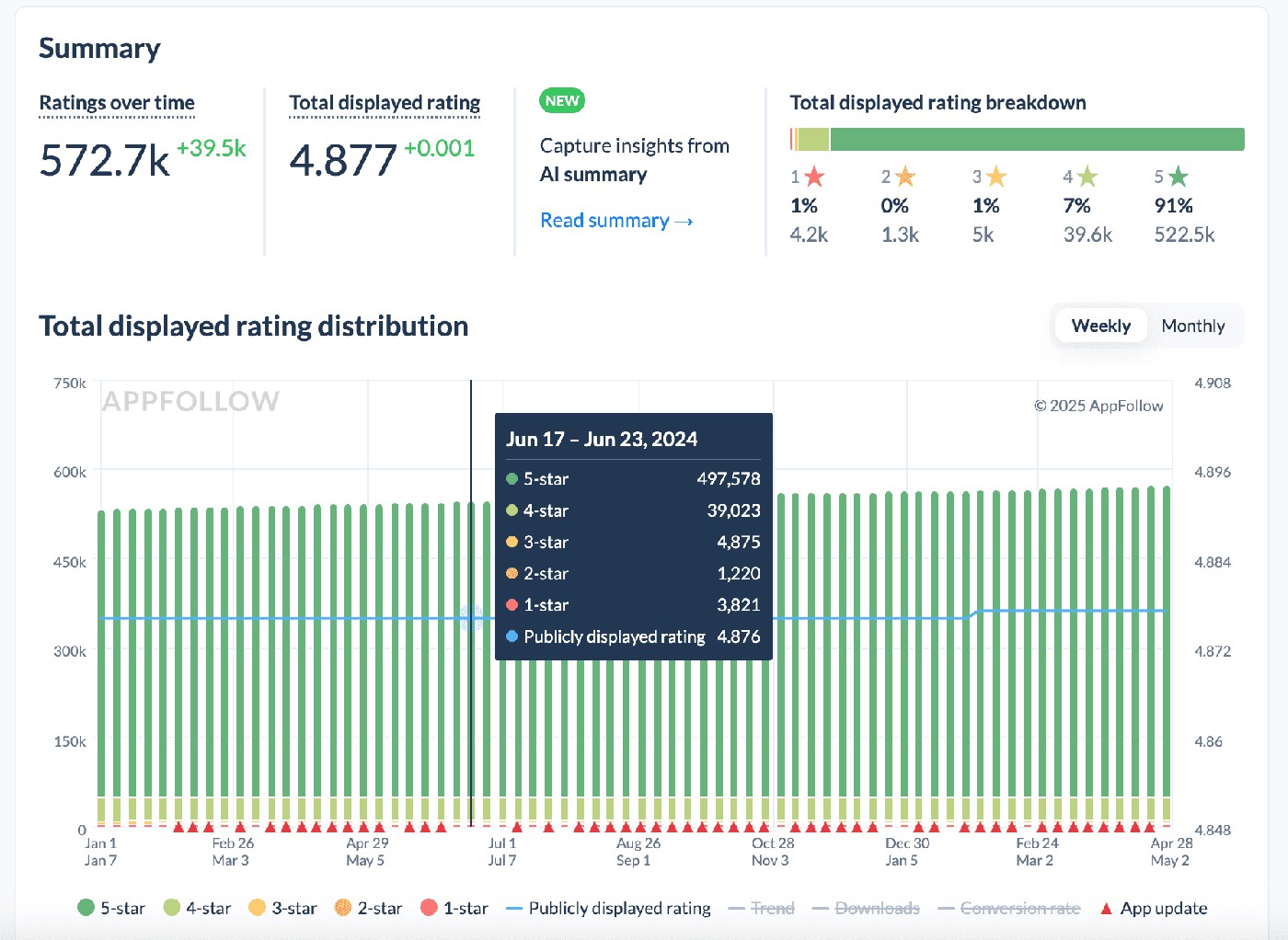
Read ratings against the release timeline: the useful signal is the change from the app’s own baseline after a version ships.
“I watch the sequence after a release: review volume rises, the share of low-star ratings changes, then conversion and rank can start moving. The threshold isn't universal. A high-volume game can absorb a review spike that would be significant for a smaller finance app, so compare the change with that app's normal baseline first.”
— Ilia Kukharev, Head of ASO at AppFollow
A poor update can trigger negative reviews, lower the visible rating, and muddy the ranking movement you're trying to measure. Rating analysis therefore belongs in the ASO release workflow, not only customer support.
Check featuring alongside category position when explaining a visibility change. An editorial placement can coincide with a download spike, so record its date before attributing the movement to metadata.
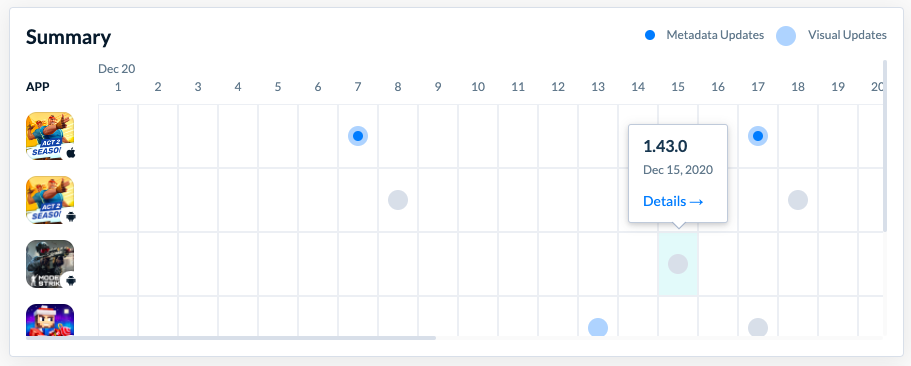
Update Timeline and Category Rankings: featuring dates and category position, by country.
If featuring coincides with a category climb, compare the dates with downloads, ratings, and releases. Keep storefront and reporting period aligned. The timeline shows events occurring together; it does not prove that a release or rating recovery caused the featuring.
How to run this Apple ASO workflow with AppFollow
Use the two sources together for a release review. App Store Connect provides your app’s impressions, product page views, downloads, and conversion. AppFollow’s Keyword Tracking adds positions and rank history by query and country. Match the storefront, device, and date range before comparing them. For Organic Dashboard and absolute Search Downloads data, configure the App Store Connect ASO Report integration.
See the terms and positions competitors hold. Keyword Spy shows which keywords competing apps rank for and where they sit. Compare Discovery zooms out further, putting up to five apps side by side across Free Rank, Grossing Rank, Keywords Ranked, Search Visibility Score, App Reputation Index, and Last Featured. App Store Connect can't give you this market view because its reporting stops at your own apps.
Compare how broadly the selected apps rank and which non-branded terms account for their visibility. These signals help frame an entry strategy; they do not determine whether an entire category is winnable.
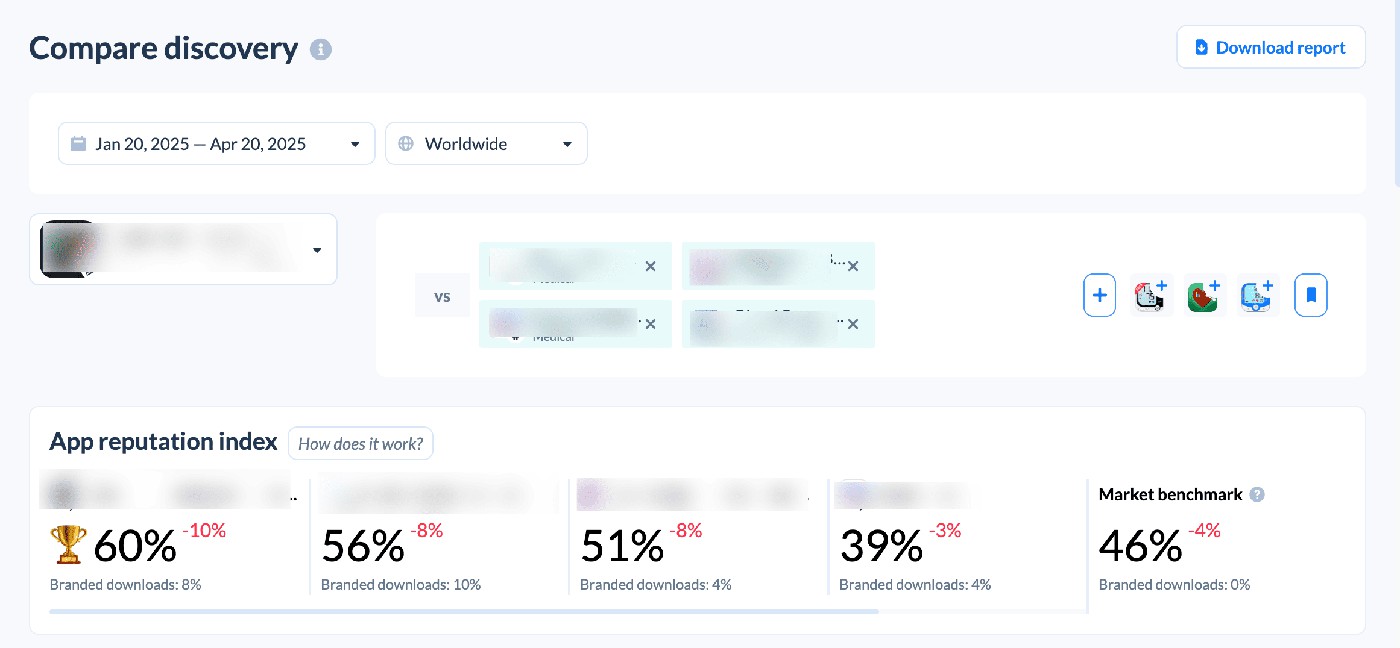
If the leaders share the same non-branded keyword set and dominate visibility, enter through a narrower feature, audience, or outcome term rather than fighting the category head term first.
Know the limits before you read the numbers. Popularity is a relative, non-linear score, not monthly search volume, and there is no absolute request count behind it. Difficulty and Effectiveness are real-time metrics that AppFollow doesn't retain historically, so export the values you need for later comparisons. Apple also doesn't provide popularity scores for every country.
cta_get_started_yellow
Apple ASO FAQ
What is Apple ASO?
Apple ASO improves an app’s visibility and conversion on the App Store. The work includes relevant metadata, effective product-page creative, ratings and reviews, and measurement. Apple names the app name, subtitle, keyword field, and primary category as text-relevance inputs, alongside user-behavior signals such as downloads.
Is App Store ASO different from Google Play ASO?
Yes. The biggest difference is indexation: Apple doesn't index the app description for search, while Google Play indexes both its short and long descriptions. For App Store optimization on Apple, your indexed text space is concentrated in the name, subtitle, and 100-character keyword field. If you manage both stores, follow the separate Google Play ASO keywords rules rather than copying one listing into the other.
How many characters is the App Store keyword field?
The App Store keyword field allows 100 characters, with keywords separated by commas and no spaces after the commas. Use the space for relevant terms that are not already covered in your name or subtitle. Don't repeat words already present elsewhere, unnecessary plurals, your brand name, or terms that aren't worth the characters they consume.
What is App Store product page optimization?
App Store product page optimization is Apple's built-in A/B testing system for comparing up to three treatments of your icon, screenshots, or app previews against the default page. You can run one test at a time for up to 90 days and control how much traffic reaches each treatment. Apple's system reports whether a treatment beats or loses to the baseline at 90% confidence or higher.
What should I check if my PPO test stops after an update?
Check the test status and whether the release changed assets or metadata under test. Apple warns that these changes can affect results, and developers have reported automatic stops after updates. Apple’s test instructions say a stopped test cannot be restarted; create a new test if needed. Record the release date and review planned changes before the next experiment.
Is iOS 15 ASO advice still valid in 2026?
Partly: the field limits and the three feature systems introduced around iOS 15 remain relevant, but an old iOS 15 ASO guide misses several important changes. Current guidance needs to account for the 70-page CPP limit, keyword-addressable CPPs, iOS 18 deep links, App Store Tags, and newer category-specific discovery surfaces. If an article presents PPO or CPPs as new, check its date before trusting the rest.
cta_get_started_yellow