

How to Reply to Steam Reviews: Developer Guide (2026)

Table of Content:
- Can developers reply to Steam reviews?
- How to reply to a Steam review in Steamworks
- Which Steam reviews should you answer?
- How to write a Steam developer response players will take seriously
- Five Steam review reply mistakes that make criticism louder
- How to reply to Steam reviews in AppFollow
- How to measure whether your Steam reply workflow is working
- Start with the native workflow, scale when the queue demands it
- FAQ
To reply to a Steam review, click the review’s Recommended or Not Recommended headline to open its detail view, find the orange moderator controls in the right-hand column, and click Write Official Developer Response. Write the reply, publish it, and it shows up immediately below the review, marked as an official response from the developer.
Simple? Pretty simple. That part takes half a minute.
The rest of this guide is about the questions the Steamworks documentation leaves to you: which reviews are worth answering, what to write when the bug is real and still unfixed, how to keep one public reply from turning into a thread, and how to handle all of it once you have four titles, six languages, and two people covering player support.
Can developers reply to Steam reviews?
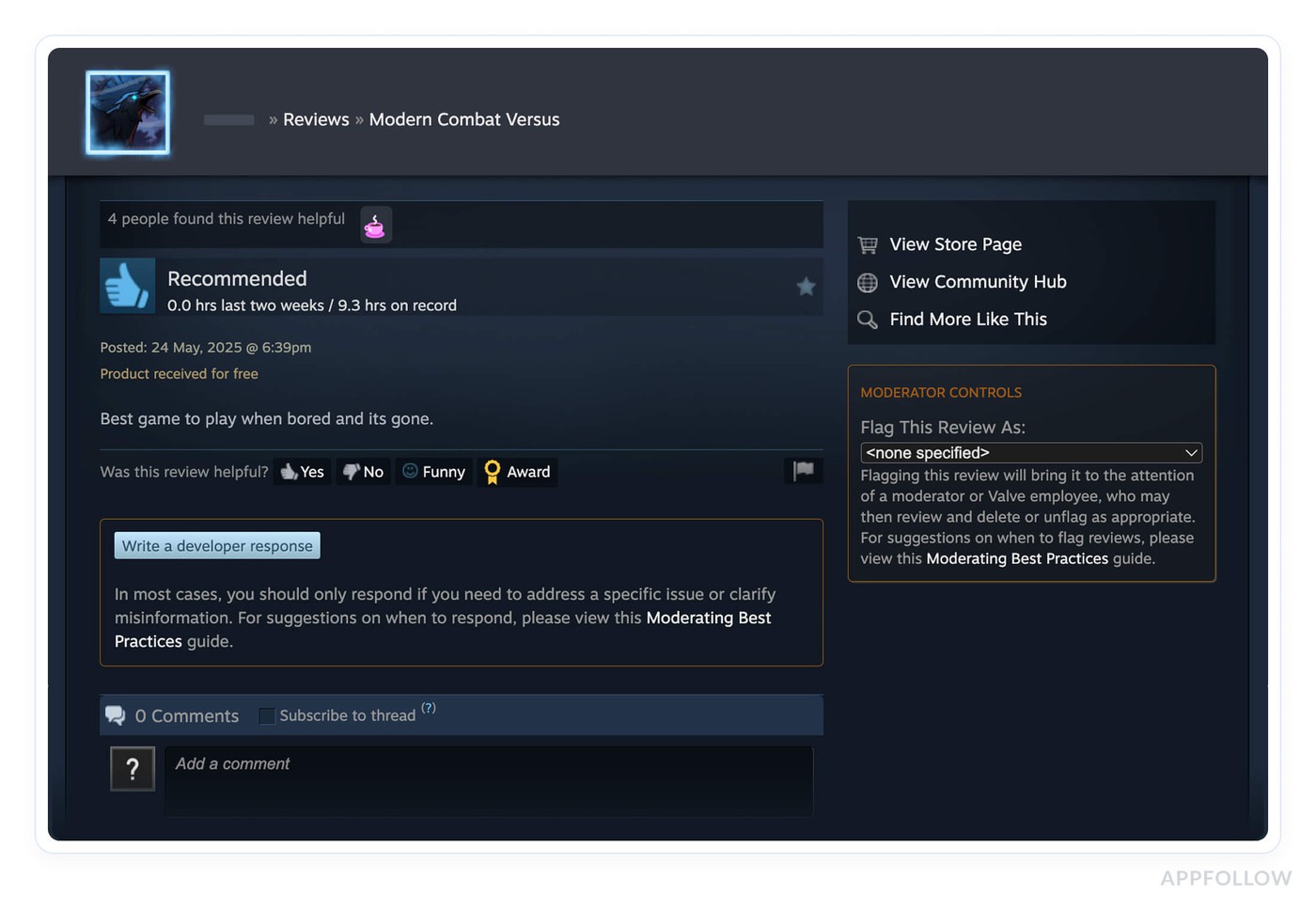
Yes, and there are two ways to do it. The official developer response sits directly below the review and carries a label saying it came from the developer. Anyone who can see the review can see the response, including people browsing the store page before they buy.
The second option is the comment section under a review, when the reviewer has comments enabled. A developer posting there looks closer to a regular community reply and gets far less visibility than the official response field. Use it for small back-and-forth with a player who is already engaged. Use the official response for fixes, patch information, and anything a future buyer should read.
Valve’s own guidance in the Steamworks User Reviews documentation is worth taking seriously here: not every review needs a response. A developer response puts a spotlight on the review it answers, so a reply to a vague complaint can hand that complaint more attention than it would have gotten alone. For background on how Steam reviews behave differently from mobile reviews, see our broader guide to Steam reviews for game developers.
How to reply to a Steam review in Steamworks
- Sign in with a Steamworks account that has permission for the game.
- Open your game’s reviews and click the Recommended or Not Recommended headline of the review you want to answer. This opens the review’s detail view.
- Look for the orange moderator controls section in the right-hand column.
- Click Write Official Developer Response.
- Write your reply in the text field. Valve’s instruction is to keep it clear and concise, and that is good advice for a message that sits on a store page indefinitely.
- Publish, then check that the response appears immediately below the review.
The same moderator controls hold the flagging drop-down, with the options Abusive, Off-Topic, and Violates Community Guidelines. Flagging sends the review to Valve, and Valve decides what happens next. Reviews confirmed as rule-breaking get removed from Steam along with their contribution to the review score. Reviews judged off-topic get reduced visibility while still counting toward the score.
Steamworks changes its interface from time to time, so treat the official Steamworks User Reviews page as the source of truth if a label or a menu position looks different from what you see here.
Which Steam reviews should you answer?
Review type | Reply? | Why, and what to do |
|---|---|---|
Reproducible bug or crash | Yes | Confirm you can reproduce it, name the fix or the next diagnostic step, and point to a support route if the player needs one |
Complaint about something a patch already fixed | Yes | Give the version number and say what changed, then invite them to try it again |
Detailed performance report | Usually | Acknowledge the hardware configuration they described and ask only for the pieces you’re missing |
Constructive criticism of a feature | Selectively | Explain the current decision or the limit of what you can commit to, without inventing a roadmap |
Positive review with a useful detail | Sometimes | One specific line is enough, and nobody needs to spend a Friday thanking 400 people |
Vague dislike, subjective opinion | Usually no | Arguing with taste rarely lands well and gives the review more room |
Abusive, off-topic, or guideline-breaking | Don’t argue | Use the flagging drop-down and let Valve’s moderation handle it |
Sudden coordinated wave of negative reviews | Pause normal replies | Work out the trigger first. Our review-bombing recovery guide covers the first hours in detail |
The pattern in that table is a question about information. If your reply gives the reviewer or the next buyer something they didn’t have (a version number, a fix, a workaround, a real reason for a design choice), it earns its place under the review. If the reply only restates that you care about player feedback, skip it.
Academic work on Steam reviews points in the same direction on which reviews tend to get answered at all (An Empirical Study of Game Reviews on the Steam Platform). That’s an association in observed data that replying causes a player to switch their recommendation. Plenty of reviews get updated with no developer contact at all.
How to write a Steam developer response players will take seriously
Four parts, in this order:
- Name the issue. Refer to the specific thing they wrote about: the boss fight where the save corrupted, the Korean localization in the tutorial, the stutter on a specific GPU. This is the part that proves a person read the review, and it’s the part generic replies always skip.
- State what you know. Reproduced, fixed, under investigation, or an intentional design decision. All four are acceptable answers. “We don’t know yet” is fine when it’s true.
- Give the next useful action. A patch version, a workaround, a support link, or a narrow request for diagnostic details.
- Close without pressure. Inviting someone to try the game again after a verified fix is reasonable. Asking them to change their review is not, and offering anything in exchange for a changed recommendation breaks Steam’s rules on top of looking bad.
When the bug was fixed after the review went up
Weak version: “Sorry for the inconvenience! We’re always working to improve the game. Please contact support if the problem continues.”
Better: “The save corruption after the (area) fight was on us. It’s fixed in (version), released (date), and that patch also repairs most save files damaged by the old bug. If you load an older save and still see it, send the file to (support route), and we’ll look at it directly.”
Use the real version number from your patch notes. A vague “recent update” makes readers guess whether the fix shipped before or after the review.
When you can’t reproduce the problem yet
Ask for two or three specific things instead of everything. A public reply that reads like a support form discourages the next person from writing a detailed review.
“We haven’t been able to reproduce the frame drops in (area) yet. If you can add your GPU model, driver version, and whether it still happens with shadows on low, that helps us narrow it down. The log file at (path) is the single most useful thing you can send.”
When it’s a feature or balance disagreement
Explain the intent, say what you’re watching, and stop there. Telling a player their read on your game is wrong turns one review into a comment thread that other buyers will read.
“(Mechanic) works this way because (reason). We’re tracking how it plays out in (context) and haven’t ruled out changes, though nothing is scheduled right now.”
When the review is positive
“Glad the (specific thing) landed. The team spent a long time on (detail), so it’s good to hear someone caught it.”
Short, specific, done. Copying the same thank-you under 50 positive reviews reads as automated, and Steam readers notice patterns in a developer’s response history because those responses are all on one
page.
Examples should sound like a studio talking about its own game. Cut “valued customer,” cut “we sincerely apologize for any inconvenience caused,” and cut anything that asks a player to update their recommendation.
Five Steam review reply mistakes that make criticism louder
- Refuting the review point by point. Every rebuttal invites another round, and the reviewer’s original text stays at the top of the exchange.
- The same apology under dozens of reviews. Anyone can scroll your response history in a few seconds.
- Announcing a fix, a date, or a roadmap item that isn’t confirmed. A missed commitment on a store page becomes the next wave of negative reviews.
- Sending the player to support without acknowledging the issue publicly. The people reading that review see a deflection, whatever happens in the ticket afterward.
- Replying during a review spike before you know what triggered it. Valve’s advice on organized negative waves is consistent, and it isn’t to start arguing on the store page. Diagnose first, reply once you know whether the complaint is about the build, a policy decision, or something outside the game.
Points 1 and 5 come back to the same mechanic: developer attention is a signal, and it works in both directions.
How to reply to Steam reviews in AppFollow
Replying by hand in Steamworks works fine for one game with a handful of reviews a week. It stops working when several people share the queue, when reviews arrive in languages nobody on the team reads, or when the same game also lives on the App Store and Google Play with a separate workflow.
Connect Steamworks for review replies
- In Steamworks, go to Users & Permissions, then Manage Users, and invite steam-invite-a@appfollow.io. Leave the permission boxes unchecked at this stage.
- Wait for AppFollow to accept the invitation. The Help Center currently says this can take up to 24 hours, since a person on our side accepts it.
- Check the invited user under Awaiting Confirmation and confirm it.
- Go to Manage Groups and open the Application Group that contains your game.
- Add the AppFollow user to that group and grant Edit App Metadata, which is the permission that allows publishing replies.
- In AppFollow, open Integrations, go to Source connections, select your Steam game, click Link account, then Notify AppFollow.
What breaks this setup:
- Grant the permission in Manage Groups, not in Manage Users. Application-level permissions live with the group.
- Your Application Group needs the Base Game AppID and every DLC or Expansion AppID. Reviews attached to an AppID outside the group can’t be answered from AppFollow.
The full walkthrough with screenshots is in the Steam: Reply to Reviews Connection article in our Help Center.
Work from one review feed
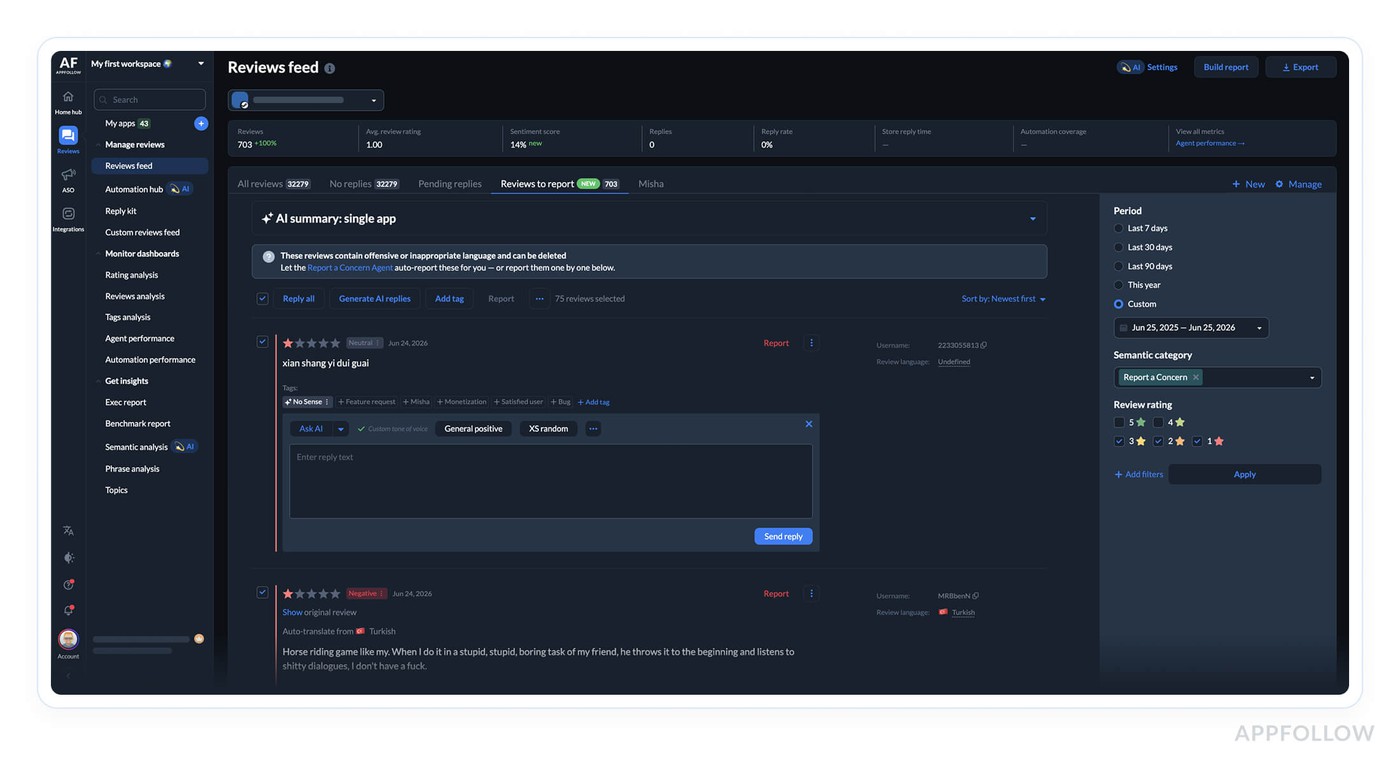
Steam reviews land in the same feed as your other sources, with filters, sorting, and export. Automatic translation runs on incoming reviews, which matters on a platform where a bad week in Russian, Simplified Chinese, or Korean can move the recent score before anyone on the team reads a word of it. Tagging works manually or through automation rules, and Tags Analysis, sentiment analysis, semantic analysis, AI Topics, and AI Summary all run on Steam data.
As of August 2026, Steam Reviews are in open beta and available to all AppFollow customers. The Custom Reviews Feed that combines Steam Reviews with Steam Discussions is in closed beta, available by request. Steam review replies need a setup step with our team, so talk to your Customer Success Manager or support to switch them on.
For a feature-level comparison between the native console and a review platform, we have a separate piece on AppFollow versus Steam developer tools.
How to measure whether your Steam reply workflow is working
A small set of numbers, checked weekly, tells you more than a rating chart
- Reply coverage for the review types you decided to prioritize, not for all reviews
- Median time to first developer response
- Recurring issues surfaced by tags and AI Topics, ranked by volume
- Reviews updated after a response
- Recommendation flips after a verified fix
- Reply errors and anything sitting in an approval queue
- Review volume and sentiment by language after each major patch
Steam’s binary Recommended and Not Recommended system doesn’t behave like a five-star average, so a metric borrowed from mobile review management can mislead you here. A negative wave of a few hundred reviews sits in the recent score for months, and one flip to Recommended moves a small game’s percentage more than mobile star math would suggest.
Start with the native workflow, scale when the queue demands it
Write Official Developer Response is enough when one person handles a small number of reviews for one game. A shared workflow starts paying for itself when the queue crosses several people, several titles, or several languages, or when you want Steam feedback next to your mobile feedback instead of in a separate browser tab.
Answering everything was never the goal. Each public response should be useful to the person who wrote the review and to the several hundred people who read that review before deciding whether to buy.
cta_get_started_yellow
FAQ
Can developers reply to Steam reviews?
Yes. Steam lets authorized developers post an official response that appears below the review and is labeled as coming from the developer. A developer can also comment when the reviewer has comments enabled, though the official response is the clearer choice for fixes and product information.
How do I reply to a review on Steam?
Click the review’s Recommended or Not Recommended headline to open the detail view, find the orange moderator controls in the right-hand column, and click Write Official Developer Response. Write your reply and publish it. The response appears immediately below the review.
Should developers respond to negative Steam reviews?
Respond when the review raises something specific you can clarify, investigate, or confirm as fixed. Skip vague or subjective criticism where a reply would only start an argument. Valve’s own documentation warns that not every review needs a response.
Can a developer delete a Steam review?
No. Developers can flag a review as Abusive, Off-Topic, or Violates Community Guidelines, and Valve decides what happens. Confirmed violations get removed from Steam and from the review score. Reviews judged off-topic lose visibility but still count toward the score.
Can I reply to Steam reviews through AppFollow?
Yes. After you invite the AppFollow Steamworks user and grant Edit App Metadata for the Application Group holding your game, replies can be published from the AppFollow reviews feed. Setup currently involves our team accepting the invitation, so check with support or your CSM.
Should I ask a player to change a negative Steam review?
Only invite them to try the game again once you’ve verified a fix. Don’t pressure anyone to change a review, don’t offer anything in exchange, and don’t make further support conditional on a positive recommendation.
